The Ultimate Speed Solution for WordPress

Free Your
Server Disk

Move your WordPress media to Amazon S3 with a single click, offload your images to the cloud and boost your site with CloudFront. Free yourself from local server limits forever!

-80%
Server Cost
5x
Page Speed
Zero
Broken Links

TurboCDN Dashboard
S3 Integration
CloudFront Ready

Interface Screenshots

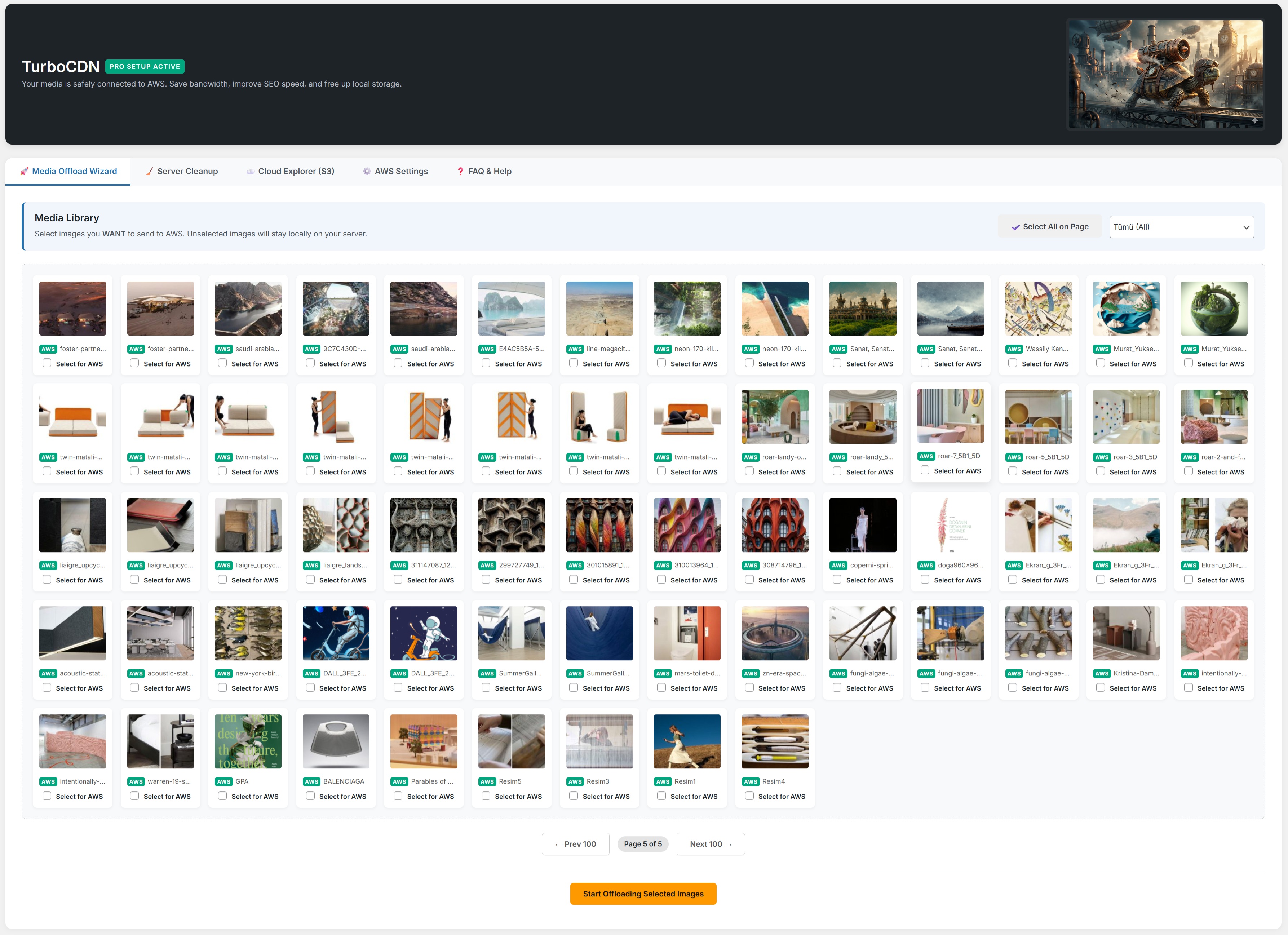
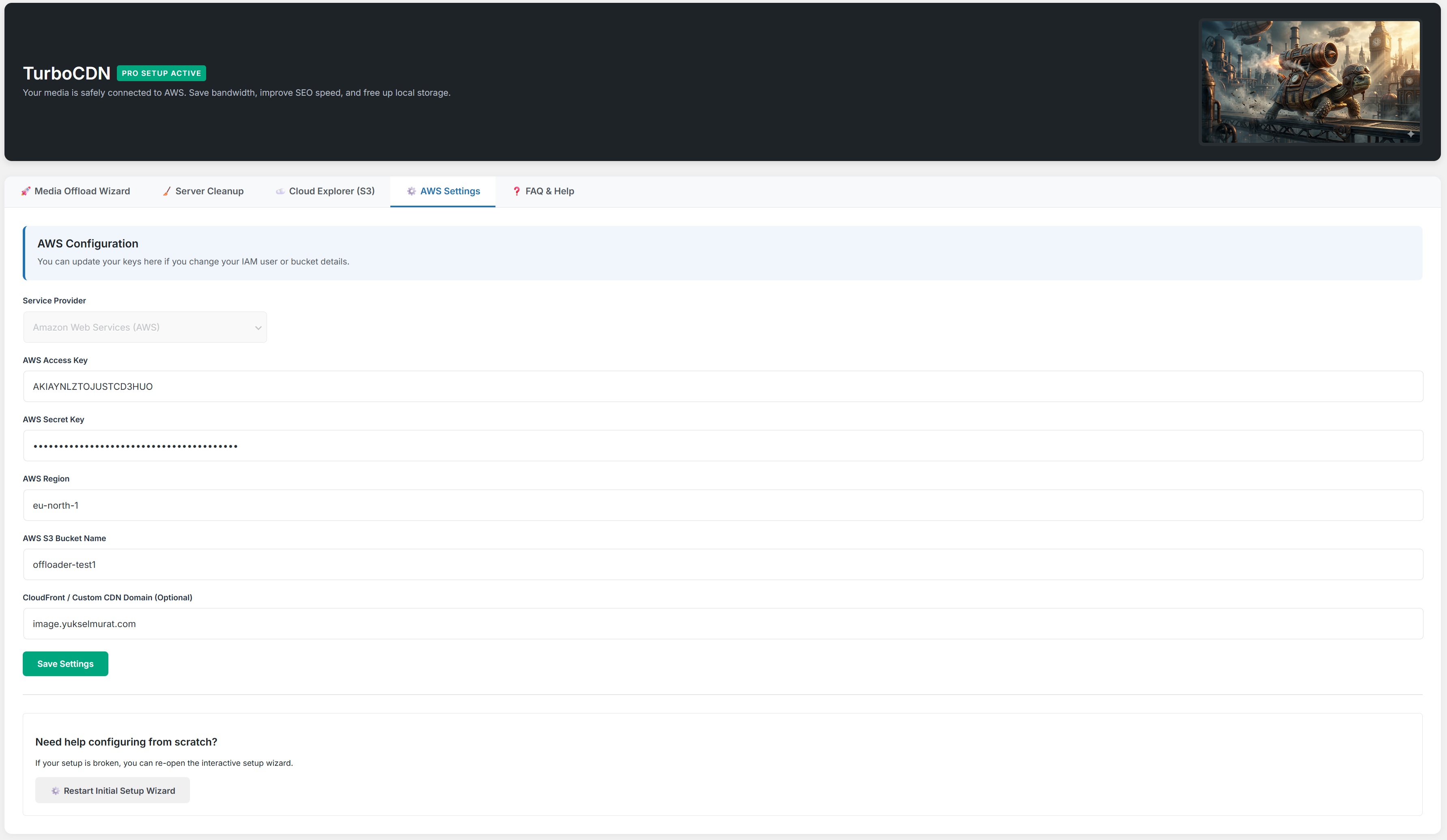
Explore our modern, intuitive admin panel perfectly integrated with WordPress. (Click to enlarge)

TurboCDN Panel Görünümü 1

Detailed Cloud Management

Monitor the cloud status of all files in your media library instantly from a single screen.

TurboCDN Ayarlar 2

Full Control Settings

Easily configure your advanced AWS settings, bucket rules, and CDN mappings.

Teknoloji Harikası Features

Infrastructure that reduces performance loss to zero for large projects and speed enthusiasts.

Bulk Media Transfer

Transfer thousands of images to AWS with one click. Our smart AJAX engine safely moves files without straining the server or causing PHP TimeOut errors.

Smart Disk Cleanup

Permanently deletes local copies of images transferred to the cloud, creating massive space (80%) on your server.

Custom Domain (CDN)

Your images are elegantly served not just as an AWS link, but with custom DNS masking like cdn.yoursite.com.

Broken Links Onarıcı

Scans and finds broken/lost image paths in your database, automatically fixing them with the high-resolution AWS link.

Choose Your TurboCDN Plan

Select the best plan for you and step into the freedom of unlimited speed.

LITE Version

For small tests and trying the system.
₺0 / Lifetime
  • AWS S3 Integration
  • 50 Image Upload Limit
  • AJAX Background Uploader
  • Custom Domain (CDN) Support
  • Auto Server Disk Cleanup
  • Premium Support
Request Demo
Most Popular 🔥

Turbo PRO

For professional e-commerce sites and publishers.
₺299 / Unlimited License
  • Unlimited Image Uploads
  • Unlimited Site Activation
  • Custom Domain (cdn.yoursite.com)
  • Zero Disk Alanı Motoru
  • Broken Links Kurtarma
  • Cloud Explorer Panel
  • Priority Developer Support
Get PRO License Now

📚 The Ultimate TurboCDN Guide & FAQ

Everything you need to know about Amazon Web Services, Cloudflare, Media Library transfer, purchasing, and installation.

Follow these steps to get 5GB of Free S3 Storage:

  1. Go to the AWS Free Tier page and click "Create a Free Account".
  2. Amazon will require a credit card to verify you are human (No charges will be made).
  3. Log in, search for "S3" in the top bar, go to the S3 service, and click "Create Bucket".
  4. Enter a unique "Bucket Name" and select the AWS Region closest to your visitors.
  5. Untick the "Block all public access" box so your images can be viewed publicly.
  6. Copy the custom "Bucket Policy" code from our plugin's "Setup Wizard" and paste it into the "Permissions -> Bucket Policy" section in your S3 panel, then save.

For your security, never use your root account keys. Create a dedicated sub-user for TurboCDN:

  1. Search for IAM in the AWS Console and go to the IAM panel.
  2. Click "Users -> Add users" and name the user something like "TurboCDN_Integration".
  3. Select "Attach policies directly", search for S3, and check the AmazonS3FullAccess permission.
  4. Once created, click the user's name and go to the "Security credentials" tab.
  5. Under "Access keys", click "Create access key".
  6. Select the "Application running outside AWS" option.
  7. 🚨 VERY IMPORTANT: Immediately copy the "Access Key" and "Secret Key" and paste them into our plugin. Once you close this screen, Amazon will NEVER show the Secret Key again! You would have to recreate it.

If your DNS records are managed via Cloudflare and you set up a Custom CDN Domain (like cdn.yoursite.com via CloudFront), you MUST make this setting in Cloudflare:

  1. When you create the CNAME record in Cloudflare (e.g., directing image.yoursite.com to d123456.cloudfront.net), Cloudflare automatically turns the Orange Cloud (Proxy) ON.
  2. CLICK THE ORANGE CLOUD TO TURN IT GREY (DNS Only)!
  3. Why? Because AWS CloudFront needs to issue an SSL certificate for your custom domain. If Cloudflare's proxy masks the IP, Amazon cannot verify ownership, resulting in a "502/525 Bad Gateway" or "Target is not allowed for a proxied record" error.

Absolutely Not! When you click the "Start Offloading Unselected Images" button, a highly optimized smart background process begins.

The system processes your large media files in small batches (10s or 20s), safely sends them to AWS, and marks them as "Copied to AWS" in the database before moving to the next batch. This AJAX structure bypasses PHP Timeout limits and prevents CPU/RAM strain. You just need to keep the tab open until it hits 100%.

If the cloud transfer is 100% complete and you confirmed images are loading from AWS, this final step is COMPLETELY SAFE.

  1. This button scans your `wp-content/uploads/` directory directly and permanently DELETES locally stored JPG/PNG/WEBP files that are successfully verified as transferred to your S3 bucket.
  2. Don't worry! Your WordPress Media Library remains perfectly intact. The file path is simply switched from your server to the vast Amazon S3/CloudFront network. You will see your images just as before in the library.
  3. Final Result: Your server disk usage drops drastically (e.g., freeing up 45GB of a 50GB disk). You can comfortably run your site on a much cheaper, entry-level hosting plan for years to come.

Over the years, WordPress generates multiple cropped sizes of an uploaded image for your theme. When writing legacy articles, these derived URLs are embedded directly as text in the database.

If you tried a manual migration solution prior to our plugin and it failed to transfer or update these mini sub-copies to AWS, those images appear as broken ("X") in the article.

Our Auto-Fix Broken Image Links button scans all your posts & pages on a database level. If it detects an old, broken image URL referencing your now-deleted local server, it smartly matches it to the main high-res AWS link and patches the article without corrupting data! Revive all your legacy broken media magically.

Cloud Explorer is a professional feature that lets you monitor your Amazon S3 bucket root directory in a real-time folder/gallery view directly inside your WordPress plugin panel.

A lifesaver especially if you have a Shared Bucket architecture (e.g., 3 different sites uploading media to the same AWS repository). This menu allows you to surf through all your sites' media without leaving WordPress. You can copy the CDN URL of any image with a click and bridge assets across sites.

TurboCDN is a licensed Murat Tools (Murat Yuksel) product, purchased securely via credit card on our site using a 100% encrypted payment infrastructure.

  • The second your purchase succeeds, a unique ZIP download file and an assigned License Key are digitally delivered to your email.
  • Upload the downloaded ".zip" via WordPress Panel -> Plugins -> Add New -> Upload Plugin and activate it.
  • Clicking plugin settings will ask for your Turbo PRO license key. Enter it to unlock everything.
  • A sophisticated Step-by-Step Installation Wizard awaits you during setup, ensuring you build your AWS data bridge in seconds without any technical stress. Priority tech support is available if needed.